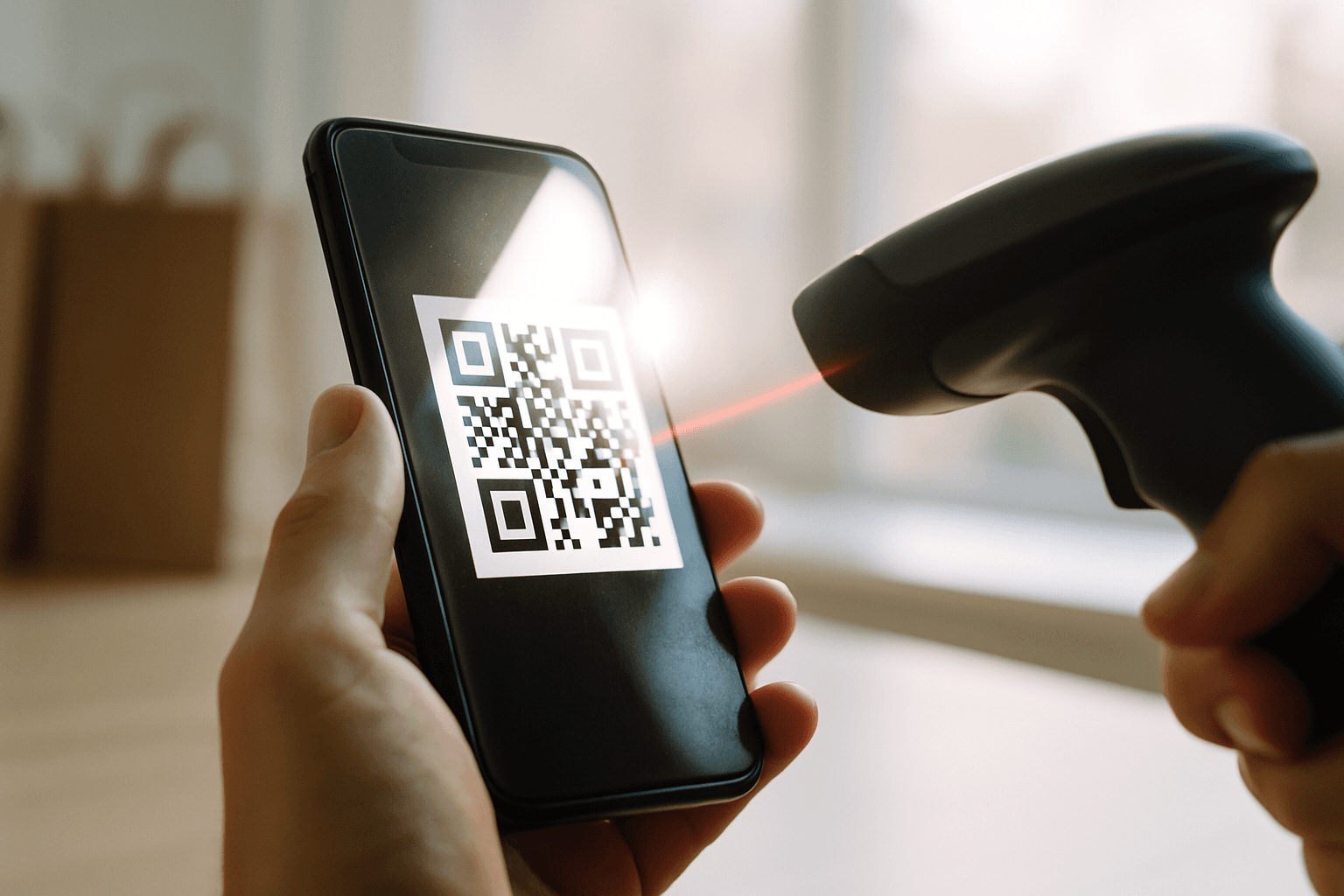
You're at the register with a full cart, the cashier or scanner is waiting, and the code on your phone just won't read. Someone behind you sighs. You tap the screen again like that will help.
When your Instacart shopper QR code is not working, it's usually one of four things: low screen brightness or a smudged screen, a weak connection, a stuck app screen, or the store's scanner being picky. Turn brightness all the way up, wipe the screen, reload the code (or reopen the app), and check your signal. If that doesn't do it, try a different scanner or lane and contact support through the app.
The rest of this post gives you the order to try things in so you don't waste minutes, a hypothetical checkout walked through step by step, the mistakes that make the problem worse, and the point where you should stop fiddling and ask for help.
Why the code fails in the first place
The code on your screen is just a picture a scanner has to read. If the scanner can't see it clearly, or the app can't load the fresh version of it, you get nothing. That's why the fixes are mostly boring: light, glass, signal, and a refresh.
What the code is used for depends on your store and your market. Some stores want you to scan something at self-checkout, some at a pickup or handoff point, and the exact flow can change with app updates. If you're unsure what a store expects, check the in-app instructions for that order rather than trusting what another shopper told you about a different chain.
Most failures fall into a few buckets:
The screen is dim, cracked, smudged, or covered by a glare-heavy screen protector
The code didn't fully load because your signal is weak inside a big store
The app is stuck on an old screen or needs an update
The scanner is dirty, angled badly, or just doesn't like that code
The quick fixes, in the order that saves time
Start with the cheapest fix and work up. Each step takes a few seconds, and most problems die in the first three.
Max out your screen brightness and turn off any auto-dim or low power mode that's capping it.
Wipe the screen with your shirt. Fingerprints and hand sanitizer film cause more misreads than you'd think.
Change the distance and angle. Hold the phone flat, about a hand's length from the scanner, then move slowly closer. Tilting kills glare.
Reload the code. Back out of the screen and open it again, or pull to refresh if the app lets you.
Check your signal. If you've got one bar in the back of a warehouse store, walk toward the front or switch between Wi-Fi and cellular.
Fully close and reopen the app, then reopen the order.
Check for an app update and restart the phone if the problem keeps coming back across stores.
If you're on an iPhone, be careful with step 6 when you use other apps alongside Instacart. More on that near the end.
A hypothetical checkout, start to finish
Here's an example, not real data. You've got a 28-item order, two cases of water, and a code that won't scan at self-checkout.
You try the scan twice. Nothing. You stop, because repeated fast tries can lock some scanners or just waste time.
You crank brightness, wipe the screen, and tilt the phone to kill the overhead glare. Still nothing.
You notice one bar of signal. You walk three steps toward the front windows, reload the code, and watch it load fully this time.
Still no read. You ask an employee to try the scanner at the next lane, since that one looks scratched.
It works at the next lane. Total time lost: maybe three minutes, instead of ten spent tapping the same screen at the same scanner.
The point isn't that those exact steps will fit your store. It's that you changed one variable at a time, so you knew what actually fixed it.
Quick reference: symptom, likely cause, fix
Screenshot this one or keep it in your notes.
| What you see | Likely cause | Try this |
|---|---|---|
| Scanner beeps never, no reaction | Dim or smudged screen, glare | Max brightness, wipe, tilt the phone |
| Code area is blank or spinning | Weak signal or slow load | Move toward the entrance, switch Wi-Fi or cellular, reload |
| Code shows but scanner rejects it | Scanner problem or old code on screen | Refresh, then try another lane or ask staff |
| Error message in the app | App glitch or outdated version | Reopen app, update, restart phone |
| Fails at every store | Phone or account issue | Update, restart, then contact support in the app |
| Fails at one store only | That store's equipment or process | Ask a manager or customer service desk what they accept |
Mistakes that make it worse
The biggest one is tapping the same screen at the same scanner over and over. If the first two reads failed, a third won't suddenly work. Change something.
Another common one: holding the phone right against the glass. Many scanners need a little distance to focus. Pull back, then ease in.
Some shoppers also burn time arguing with a cashier about how the code is supposed to work. Store staff often don't know the Instacart side of it. Ask them to check the scanner, not to explain your app.
And don't save the problem for later. If you suspect the issue is on your side of the app, report it while you're still in the store, so the timing is clear if support has to look at it.
One more: leaving your battery at 8% with low power mode on. Low power mode can dim your screen and slow background refreshes, which is exactly what you don't want at a register.
When to stop troubleshooting and get help
Give yourself a limit. If you've tried the basics and a second scanner, and you're now past a few minutes, stop. The longer you stand there, the more your next batch window shrinks.
Use the in-app help to contact support. The options and wait times change, and they can differ by market, so check what the app offers when you open it. Describe it plainly: which store, what the screen showed, what you already tried.
If the problem only happens at one location, tell the manager or service desk, and note the store for next time. Some stores are just slower to get right than others, and knowing which ones saves you from planning a tight batch around them.
Also take a screenshot of any error message. It's a small thing, but it gives support something concrete to work with.
Where ShopperBoost fits in
A checkout hiccup is the kind of delay that stacks up: you lose a few minutes at the register, and you still have to find your next order. ShopperBoost distributes ShopperX, an iPhone tool for Instacart shoppers in the US and Canada that filters batches by rules you set (minimum payment, maximum distance, stores) and auto-accepts the ones that match, running in the background so you aren't staring at the screen.
It also touches this exact problem in one practical way. ShopperX needs to stay open (it can be off screen, but not fully closed), and Instacart has to be open too. So if you force-close apps while chasing a QR glitch, reopen ShopperX afterward. If it shows a security validation or restart message, close all apps, open ShopperX and tap the engine, then open Instacart, go to the batch list and pull down to refresh twice before heading back to ShopperX. Go slowly, because rushing can keep them from syncing.
You can still accept batches by hand in the Instacart app anytime. Results vary by market, hours, and filter settings, and no automation tool can promise zero account risk. There's a free 5-day trial for new users, no credit card needed, if you'd like to see how it fits your routine.
FAQ
Why won't my Instacart shopper QR code scan at self-checkout?
Most often it's screen brightness, a smudged or glared screen, or a code that didn't fully load because of weak signal. Fix those first, then try another scanner or lane.
Should I reinstall the Instacart app if the QR code keeps failing?
Only after the quick steps. Update the app, restart your phone, and try a different store first. If it fails everywhere, reinstalling is a reasonable next move, but contact support through the app before you do anything drastic mid-shift.
Does bad cell signal really affect the code?
It can. If the screen has to load or refresh the code and your connection is weak, you may see a blank or stale code. Moving toward the entrance or switching between Wi-Fi and cellular often helps.
Who do I contact if the code only fails at one store?
Start with the store's customer service desk or a manager about the scanner. Then report it in the app so there's a record, and note which store it was.
Change one thing at a time, in order: brightness, glass, signal, refresh, then a different scanner. Give it a few minutes, and if it still fails, ask for help instead of burning your next batch.
This site is not affiliated with Instacart.